
 CasePulse
 You're probably here because you have a PDF open, a filing deadline coming up, and sensitive information that can't leave your office. Maybe it's a medical record, wage file, intake form, or exhibit set. The black boxes look right on screen, but that's not the same thing as safe.
That distinction carries greater weight than commonly understood. In legal work, a document can appear redacted and still expose names, numbers, comments, file paths, or prior edits to anyone who knows how to search, copy, or extract the text underneath. If you need to redact information in PDF files correctly, the job is not cosmetic. It's technical, and it needs a repeatable quality check before the file ever goes out.
Why Proper PDF Redaction Is Non-Negotiable
A common failure starts with a shortcut. Someone opens a PDF, drops a black rectangle over a Social Security number, saves it, and sends it to opposing counsel or files it publicly. On the page, the number looks gone. In the file, it may still be searchable.
That's the core problem. Visual masking is not redaction. Proper redaction means deleting the underlying data from the file structure itself, not merely covering what appears on the page. The Court of Federal Claims has been explicit about this point in its PDF redaction best practices.

What lawyers and staff often miss
PDFs can hold more than visible text. They may also contain metadata such as author details, edit history, comments, and file paths. If a user only paints over the visible words, the hidden content can remain intact.
Data shows that 68% of users who black out text in PDFs inadvertently leave hidden metadata recoverable via forensic tools, which is one reason courts have rejected improperly redacted filings due to exposure risk, according to NC Records on PDF redaction testing.
Practical rule: If you can still search for the covered text, you haven't redacted it. You've only hidden it from casual viewing.
For plaintiff firms, that risk isn't abstract. Intake packets, lien records, provider bills, and settlement material often carry private information that has to be handled with care. The same habits that matter for PDF redaction also show up in broader privacy work such as securing data in the Philippines, where teams have to think beyond what's visible on the screen and focus on what the file still contains.
Why this is a duty of care issue
The legal issue is straightforward. If protected information leaves your control because the file was only cosmetically altered, the problem usually isn't the software. It's the workflow.
A sound process should cover redaction, metadata removal, and final verification before the document is shared externally. That's why many firms treat redaction as part of their larger law firm cybersecurity practices, not just as a formatting task delegated at the last minute.
Here's the takeaway I give staff whenever this comes up:
- Black boxes are not enough: They can leave text selectable and recoverable.
- Metadata matters: Author names, edits, and comments can reveal more than the page itself.
- Verification is part of the job: A redacted file should be tested before it leaves the firm.
Selecting a Secure PDF Redaction Tool
The first decision is where the file is processed. For legal work, that matters as much as the redaction feature itself.
A lot of browser tools promise quick PDF cleanup. They're fine for low risk office tasks. They are not where I'd put client medical records, financial statements, or draft filings that contain protected information. Once a confidential PDF is uploaded to a free online tool, you've handed control of that file to someone else's environment.
Why local processing matters
The safer choice is a desktop application that processes files locally and includes dedicated redaction and sanitization tools. You want software that distinguishes between editing and redaction. Editing changes appearance. Redaction is supposed to destroy the selected content and remove hidden data that could survive ordinary editing.
That's also why I'd be cautious about shopping from broad comparison pages that lump every PDF utility into one bucket. If you're evaluating adjacent workflow tools, keep the categories straight. A page about software used to organize firm documents isn't the same thing as a redaction standard, because storage and collaboration don't automatically tell you whether a PDF tool performs irreversible sanitization.
The risk with free online redactors
The security trade off with browser based tools is not theoretical. A 2024 Legal Technology Risk Report found that 57% of users who uploaded client-sensitive PDFs to free online redactors experienced data retention by the service provider, creating compliance risks under HIPAA and state confidentiality rules, as noted in Lumin's discussion of PDF redaction concerns.
That doesn't mean every online service behaves the same way. It does mean you shouldn't assume deletion, local processing, or metadata scrubbing unless the tool clearly provides it.
If a redaction tool asks you to upload a privileged or protected document to a remote server, assume you need a stronger reason to trust it than convenience.
What to look for in a real redaction tool
A practical checklist is short:
| Need | Why it matters |
|---|---|
| Dedicated Redact tool | Marks content for permanent removal instead of visual covering |
| Apply Redactions function | Confirms the point at which removal becomes irreversible |
| Sanitize or Remove Hidden Information | Deletes metadata, comments, hidden layers, and revision traces |
| Local desktop processing | Keeps sensitive files under firm control |
| Save as separate file | Preserves the original in case you need to review or redo work |
Adobe Acrobat Pro is one commonly used example because it includes both redaction and hidden information removal. Other professional tools may offer similar functions, but the test is always the same. Can it permanently remove content and sanitize hidden data, or does it only alter what the page looks like?
A Step-by-Step Guide to Redacting PDFs
Once you have the right tool, the process itself is simple. What matters is doing the steps in the right order and not treating the visible black mark as the finish line.
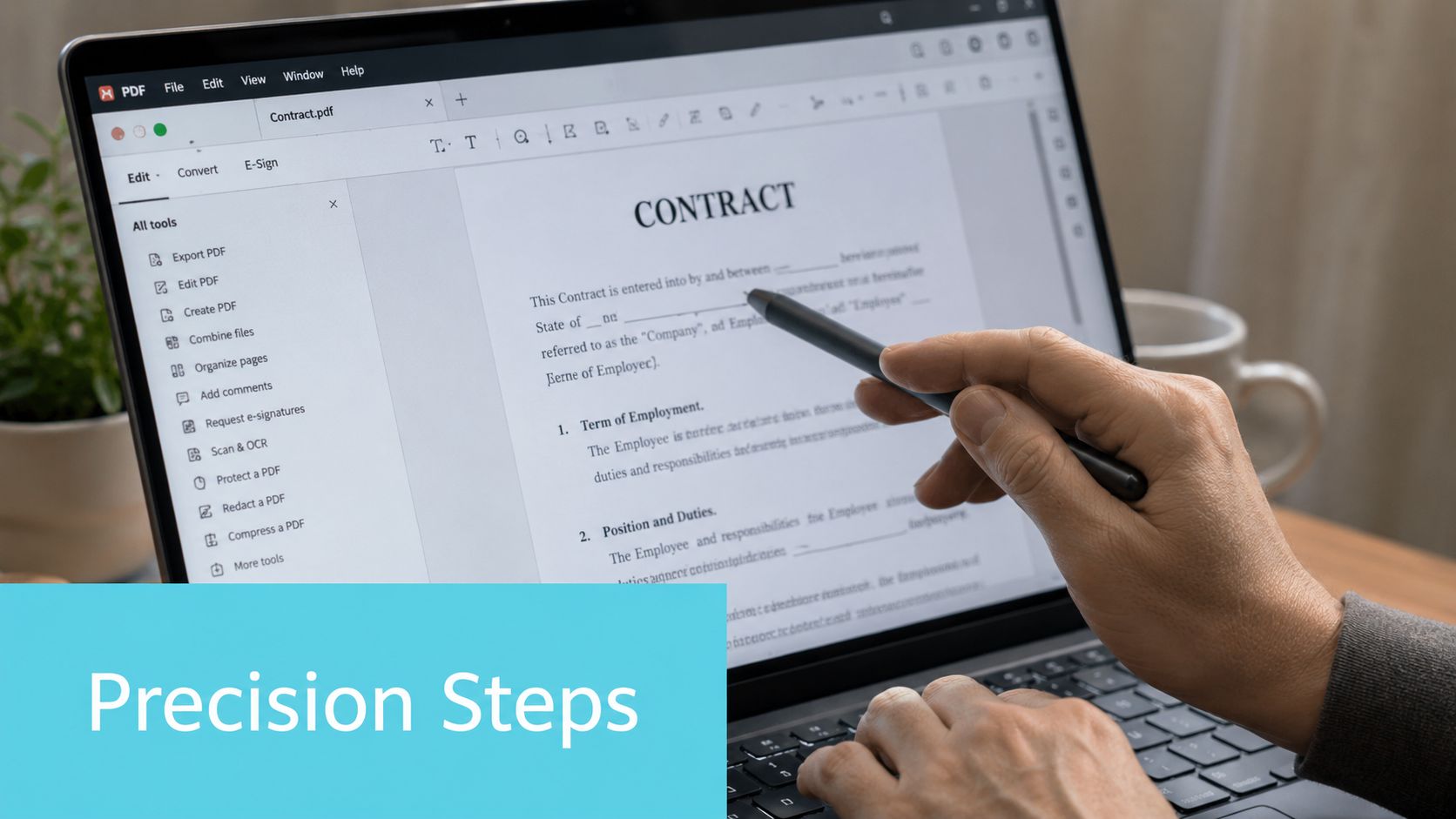
For a native digital PDF
If the PDF was generated from Word, a case system, or another digital source, the text usually exists as real text in the file. That's the easiest scenario for proper redaction.
The core workflow is established and should be followed in sequence. The proper workflow involves using a "Redact" tool to mark content, then clicking "Apply Redactions" to confirm the permanent removal. Critically, a "Sanitize and remove hidden information" toggle should also be used to delete metadata and hidden layers that plain redaction can miss, as described in UniDoc's redaction workflow guide.
Use this order:
Open the original PDF
Work from the original, not from a copy that already has drawn shapes or comments on top of it.Activate the Redact tool
In Adobe Acrobat Pro, this is separate from commenting or drawing tools. That separation matters because a rectangle tool only changes appearance.Mark the text or image for redaction
Select exact text, phrases, or regions. Be precise, especially in records with repeated names, claim numbers, or identifiers.Apply the redactions
This is the irreversible step. Until you click Apply, many programs are only queuing the action.Sanitize hidden information
Remove metadata, embedded content, hidden layers, and similar leftovers before saving the final version.Save with a different filename
Keep the original intact. A filename such as “Exhibit B redacted.pdf” is more defensible than overwriting the source file.
For scanned records and photocopies
Scanned medical records and marked up paper exhibits behave differently. The visible text may be part of an image, not a text layer. In that situation, your software may need OCR before text based redaction is practical.
If OCR is available, run it first, then mark and apply redactions as usual. If the scan is poor quality, don't assume OCR found everything. Review the pages manually, especially handwritten annotations, stamps, and image based identifiers.
The Court of Federal Claims also gives a practical option for scanned or photocopied documents. If the source is effectively an image, one simple method is to print the document, black out the text with a marker, and scan it back into PDF format. That old school method is not elegant, but for some image heavy records it creates a cleaner separation from the original hidden content.
A safer fallback for high-risk material
When precision is paramount and the source file is messy, flattening matters. One best practice is to draw the redaction boxes and then flatten the page to an image, which the Court of Federal Claims describes as the most secure way to redact because 100% of the information is removed in that conversion process, according to its published best practices linked earlier.
Don't confuse “looks redacted” with “is redacted.” The irreversible step is applying the redaction and sanitizing the file, not drawing the box.
A final habit that saves trouble is to pause before export and ask one question: if this PDF were produced in discovery tomorrow, would I be comfortable defending the method used to prepare it?
How to Remove Hidden Metadata Before Sharing
Visible text is only half the problem. A redacted PDF can still carry hidden details about who created it, when it was edited, what software touched it, and whether comments or revision history remain inside the file.
That hidden material can expose more than people expect. In a litigation setting, metadata can reveal internal staff names, drafting history, document timing, or remnants of edits that were never meant to leave the office.

What metadata usually includes
Think of metadata as the information about the document rather than the document's visible body text.
A PDF may contain:
- Author details: Names and identifying information connected to the file
- Creation and modification dates: Useful internally, but not always appropriate to disclose
- Software information: The program and version used to prepare the file
- Edit history or comments: Internal notes, layers, or revision traces
That's why redaction and sanitization are related but not identical. You can redact visible content correctly and still leak information if you skip the metadata cleanup.
How to sanitize the document
Professional tools separate this function for a reason. The redaction process in professional software like Adobe Acrobat requires selecting "Sanitize document" and choosing to selectively remove hidden metadata and revision history, ensuring that comments, hidden layers, and edit trails are permanently erased alongside the visual content, according to Adobe's guide on redacting PDFs.
If you're sending the file outside the firm, I treat sanitization as mandatory, not optional.
A simple workflow looks like this:
| Step | Purpose |
|---|---|
| Apply visible redactions | Removes the content you marked on the page |
| Run Sanitize document | Targets hidden metadata and revision material |
| Review selective removal options | Confirms comments, layers, and history are included |
| Save a new outbound copy | Keeps a clean version ready for production or filing |
Working habit: Before sending any redacted PDF through email or a portal, assume the hidden data is still present until you have run sanitization.
This matters just as much when documents move to clients as when they go to the court or opposing counsel. If your team is already tightening outbound practices, it helps to use secure transmission methods too, such as the approaches discussed in secure file sharing with clients.
Verifying Your Document Is Truly Redacted
The last line of defense is quality control. Redaction should never end with “it looks fine on screen.”
A reliable check doesn't require expensive tools. It requires skepticism and a few minutes of deliberate testing. Proper redaction means deleting the underlying data from the file structure itself, not merely masking it. To verify the result, open the redacted file in a simple text editor or run a text-extraction command; if successful, nothing readable from the redacted areas should remain, as explained in this discussion of PDF redaction verification.
The quick checks anyone can do
Start with the easy tests inside the PDF viewer itself.
- Try to select the text: Drag your cursor across the blacked out area. If text highlights underneath, the file failed.
- Copy and paste: If anything from the covered area pastes into another document, the file failed.
- Use search: Search for a known redacted word, name, or number. A hit means the underlying content is still present.
These checks catch a surprising number of bad redactions because many failures come from ordinary drawing tools, not true redaction functions.
The stronger validation methods
For a more serious review, test the file outside the viewer.
Open the redacted PDF in a basic text editor, or run a text extraction utility such as pdftotext or strings. If the redacted names, dates of birth, account numbers, or identifiers appear in output, the content was not removed from the file structure.
Another verification method is more hands on. Microsoft's support forum describes a practical check where you change the PDF file extension to .zip and inspect the contents. If the supposed redacted text remains visible in the file structure, it was never permanently removed. I use that less often than text extraction, but it's useful when you want a quick look behind the curtain.
A short verification routine for staff
For repeat work, I like a fixed checklist:
- Open the redacted copy, not the original
- Search for at least one removed term
- Attempt selection and copy on a blacked out region
- Run a text extraction check
- Only then send or file the document
A redaction workflow is only defensible if someone verifies the output, not just the steps.
That single habit separates a process you can trust from one that only looks careful.
Batch Redaction and Your Final Security Checklist
When you're working through a production set, redacting one instance at a time gets slow fast. Repeated names, claim numbers, and phrases are exactly where manual work breaks down.
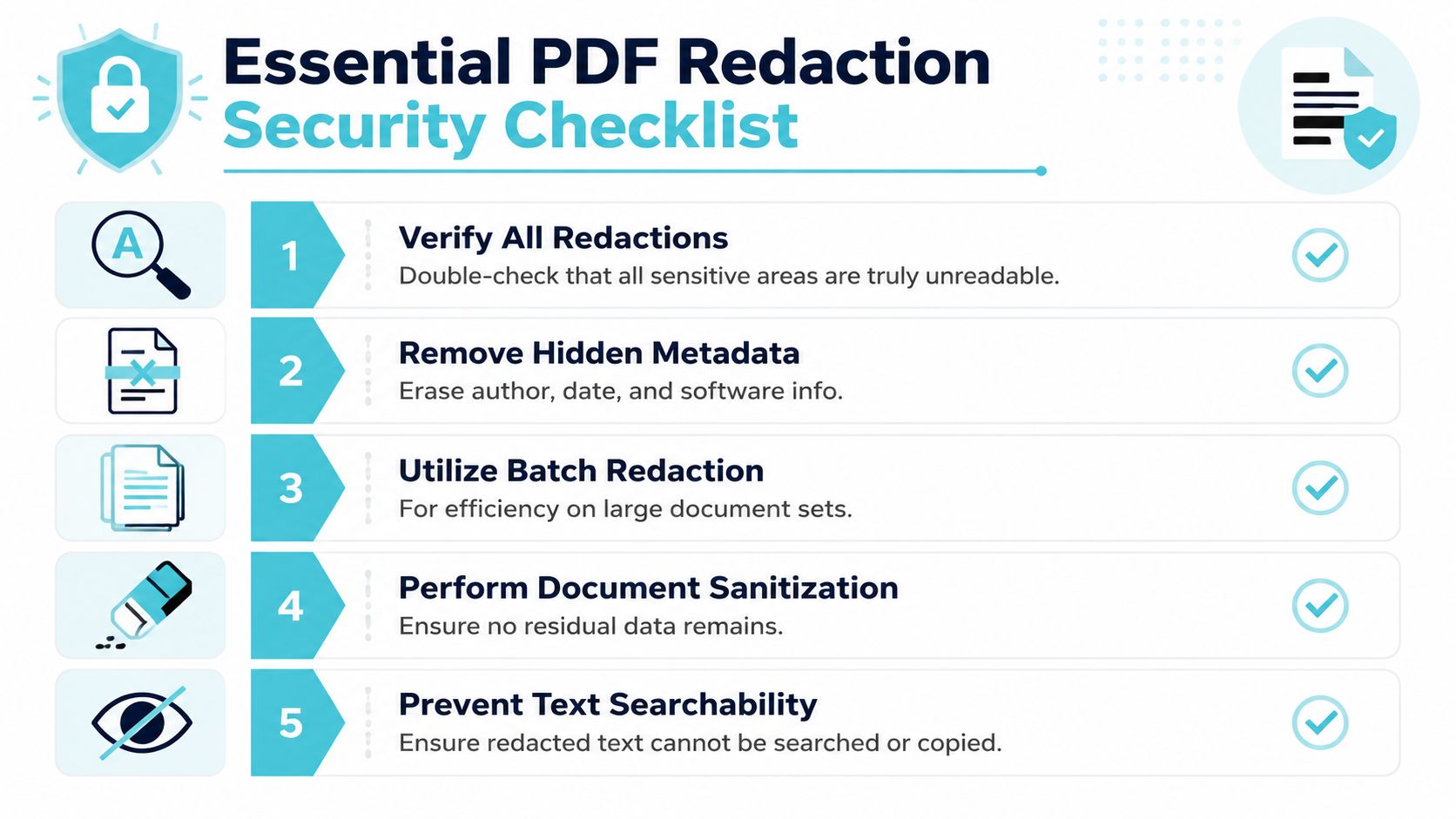
Batch tools help because they reduce repetitive selection. Adobe Acrobat Pro offers a "Find text and redact" feature that automatically locates and removes every instance of a specific word or phrase across an entire document, saving significant manual effort compared to selecting each occurrence individually, as shown in Adobe Acrobat Pro's feature demonstration.
When batch redaction makes sense
Batch redaction is especially useful when the same term appears over and over in long records or grouped productions.
Use it for situations like these:
- Repeated client names: Medical chronologies and billing records often repeat the same identifiers across dozens of pages.
- Known phrases: Specific policy numbers, account references, or recurring confidential labels are good candidates.
- Large document sets: Folder level work benefits from consistent treatment when one term must be removed everywhere.
Batch features don't remove the need for review. They just reduce the odds that a tired reviewer misses instance number forty seven on page two hundred.
Final outbound checklist
Before any redacted PDF leaves the firm, run this checklist:
- Use a true redaction tool: Not a shape, highlighter, or annotation layer.
- Apply redactions: Marking alone is not enough.
- Sanitize hidden information: Remove metadata, comments, layers, and revision history.
- Save a separate copy: Preserve the original source file.
- Verify the result: Search, select, copy, and extract text before sharing.
If your team handles redactions regularly, that checklist should live in a written SOP, not in someone's memory. Consistency is what keeps routine work from turning into preventable disclosure.
CasePulse helps law firms improve the client side of document exchange and communication without forcing staff to leave their existing workflow. If your firm wants a more secure, organized way for clients to message the team, share files, complete forms, and check case status around the clock, take a look at CasePulse.